Scheduling tab
Once an integration is configured, this is where IMan can be instructed to run the integration.
Integrations can be scheduled either immediately or with a specified frequency.
The results will display in the window on the right hand side and, if emails are requested, the user will receive a copy of the Audit Report.
Start by selecting the Scheduling from the primary navigation menu.
Schedule Screen Overview
The schedule screen is divided into two vertical panes:
- Manage Schedules
- Add/manintain/delete schedules or run on demand.
- Viewing Results
- The results of the selected integration are displayed on the right hand side.
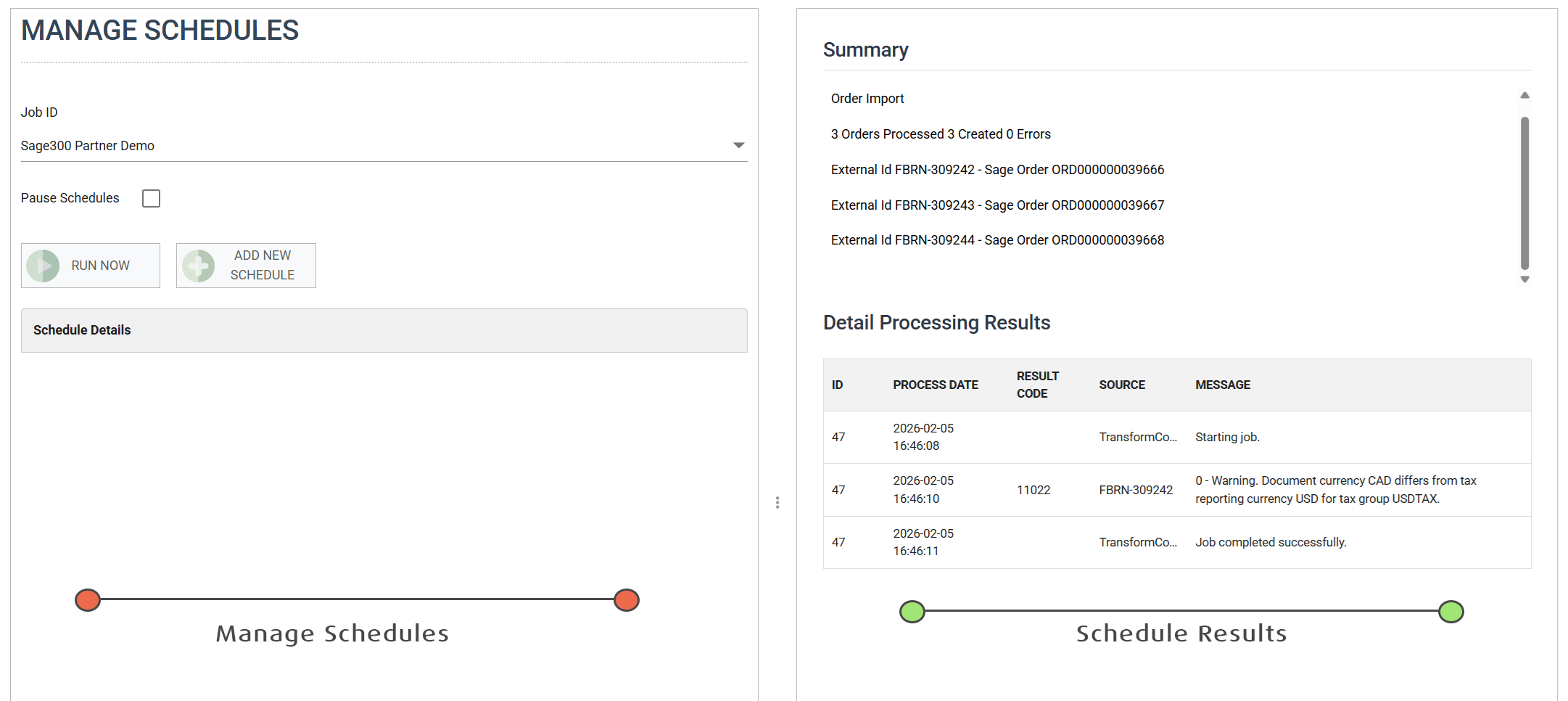
Manage Schedules

Job Id
Select the integration the schedule is to run.
Any recurring schedules will be displayed in the grid below.
Pause Schedules
Selecting the pause schedules will stop all scheduled tasks for the selected integration. This includes 'Run Now' tasks from running.
When deselected (unpaused) the schedules for the integration will run. Any schedules that were due to run whilst the schedules were paused will not be triggered.
Schedule Grid
Any schedules for the selected integration are displayed in this grid.
To create a new schedule double click the top row of the grid, otherwise double click an existing schedule to make modifications.
Run Now Button
When pressed will immediately run the integration.
Add / Edit Schedule
To create a new schedule press the Add button; to edit an existing schedule click the row.

Description
An optional description for the schedule.
Frequency
The frequency at which the job is to be scheduled.
With the exception of the ‘Now’ frequency, all others allow the recurrence frequency to be specified.
Recurrence Period
The recurrence period is dependent on the Frequency selected.
For example, when a Monthly frequency is selected the recurrence period will allow you to select how many months and days between each scheduled instance.
Recurrence Period is not applicable to schedules asked to run 'Now'.
Start
The date & time to start the scheduled job, dependent on Frequency:
Date
- The day to which the first scheduled instance will occur. The schedule of the screenshot above would occur on the 10th of every month.
- If, for example, a Daily schedule was setup the Start Date would specify the day on which the schedule should first run.
Time
- The time of day to which schedule will occur. The schedule of the screenshot above would occur at 16:51 on the 10th of every month.
End
The date & time to end the scheduled job.
By default this is set to 10 years in the future of the current date. So, by default, any schedule would run at the specified day/date and time every day/month/year for 10 years.
Viewing Results
On the right hand side of the schedule screen is the integration results area. For the Job selected, any integrations which are run will display the audit results.
The results shown are the same as the audit report which is emailed to specified recipients at the end of every transform process.
