Email Settings
Before an integration can be configured, IMan must have access to an SMTP server. This is because each time an integration runs, an email containing the audit results is sent to specified recipients.
IMan requires details of an SMTP server through which to send the audit report emails. Typically this is through either an internal mailserver such as Exchange or an external server provided by your internet service provider (ISP).
To setup the SMTP server:
- Click on SMTP Servers from the left hand Setup menu.
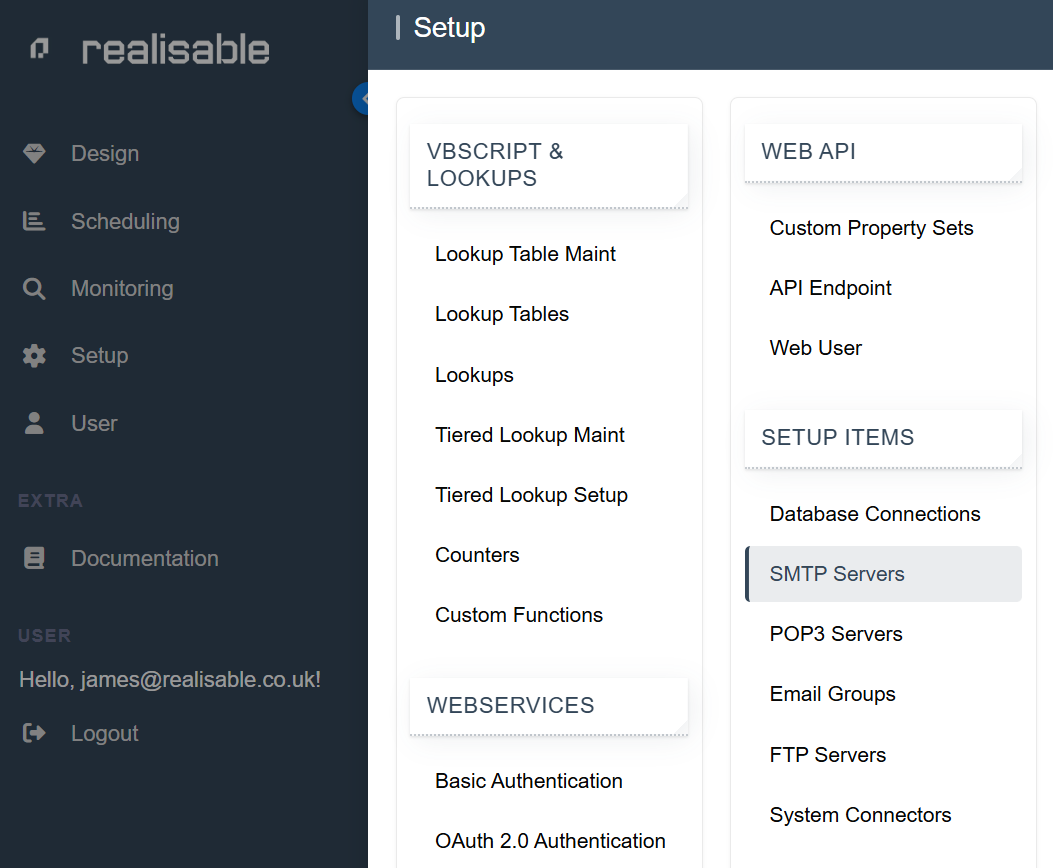
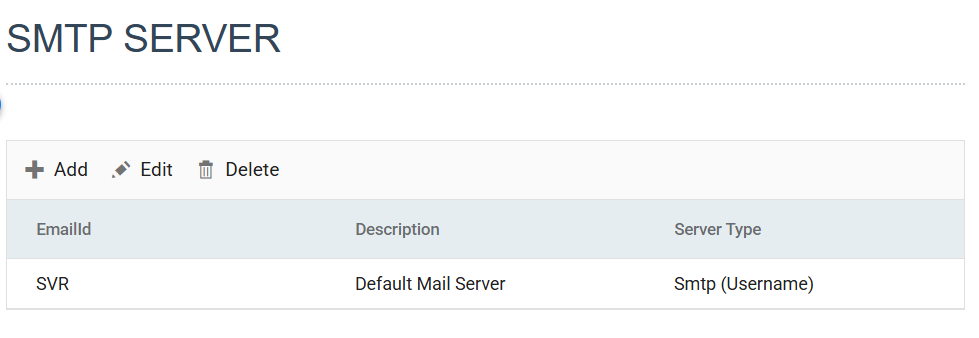
- On the left hand menu bar > click SMTP Servers > double-click the ‘DEFAULT’ row in the grid.
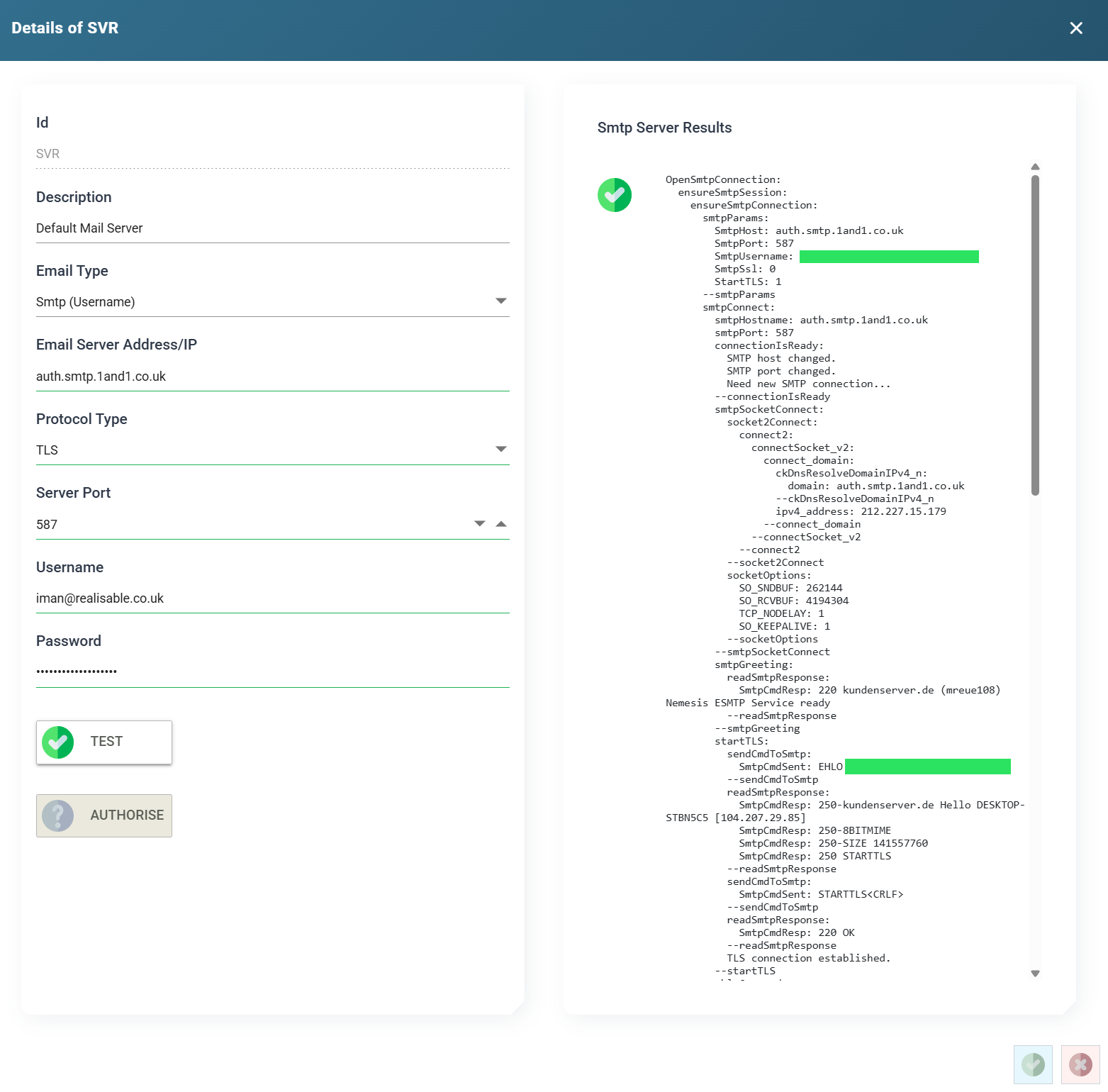
- IMan supports SMTP Server of 'Smtp' mail/authentication: Smtp; Azure/Office365 Hosted and a Realisable hosted relay service.
- Enter the details for an SMTP server, press Test to check then connection and press the green tick to save the record.
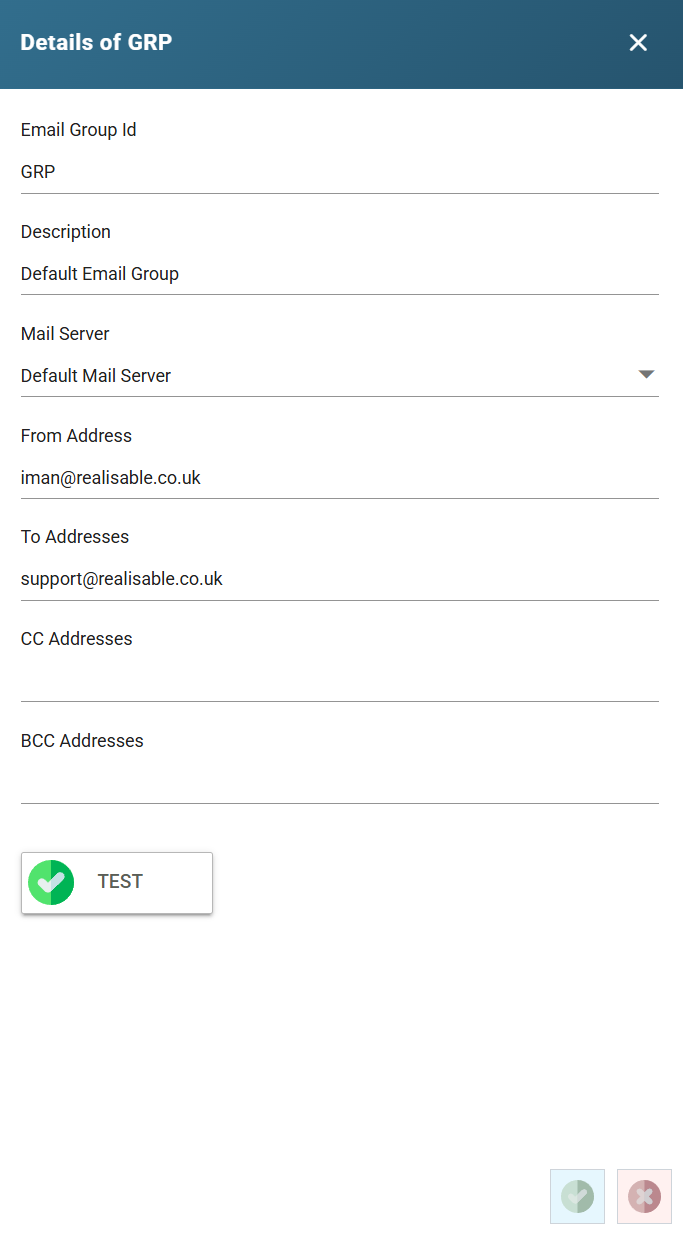
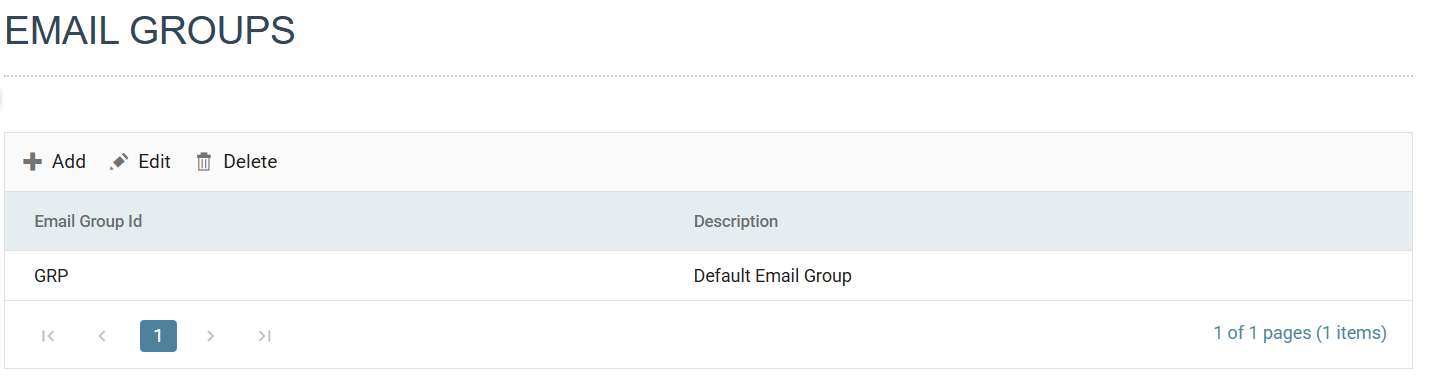
- Click the Email Groups option on the left hand menu bar, then click the ‘GRP’ row.
- Enter an email address into the ‘From’ and ‘To’ address fields.
- When setting up IMan initially, set both these fields to your own email address.