IMan User Setup and Login
To open the IMan login page either:
- IMan will take about 15-20 seconds the first time it is opened.
- Open a web browser and enter the URL for your IMan server into the address bar
- https://<servername>:44303/IMan
- Replace <servername> with name of the server or workstation on which IMan is installed.
- Please note port 44303.
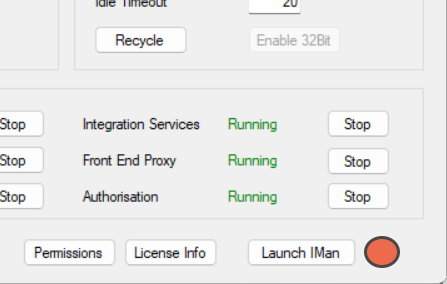
- Press Launch IMan from the Admin Console.
- Create and Register a new user.
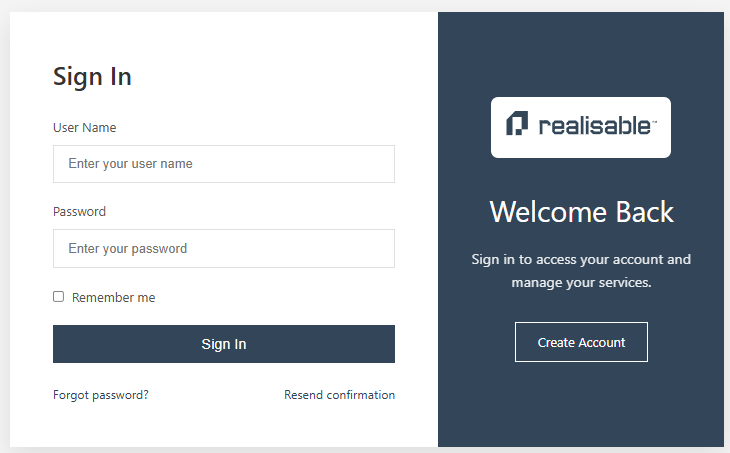
- Press the Create Account from the Login screen.
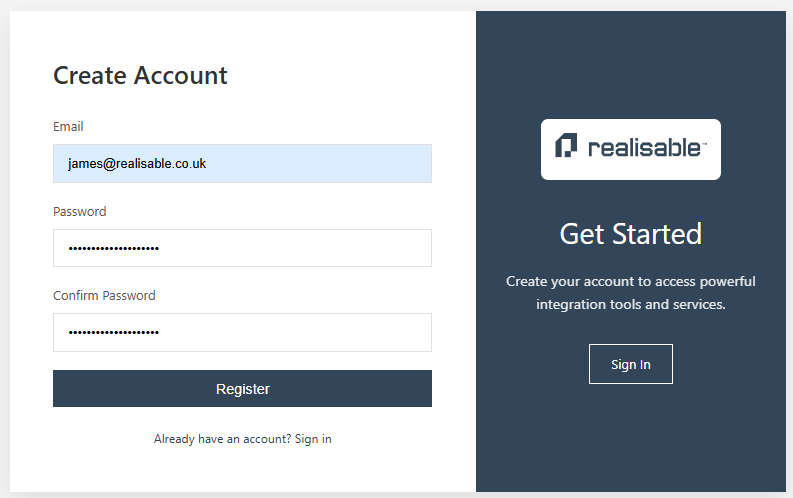
Enter an email, password and confirm password, the Register.
If the registration email can be sent a confirmation is shown.
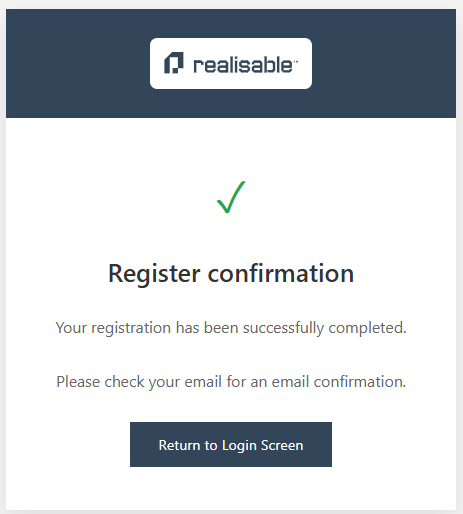
Check your email for the user registration.
- There is a 'Confirm Email' link and below a text version of the same link.
- Click on the Confirm Email if the IMan server is resolvable/accessed from your computer.
- If the IMan server can be accessed only through (for example) an RDP session copy the link and paste link into a browser on the RDP server.
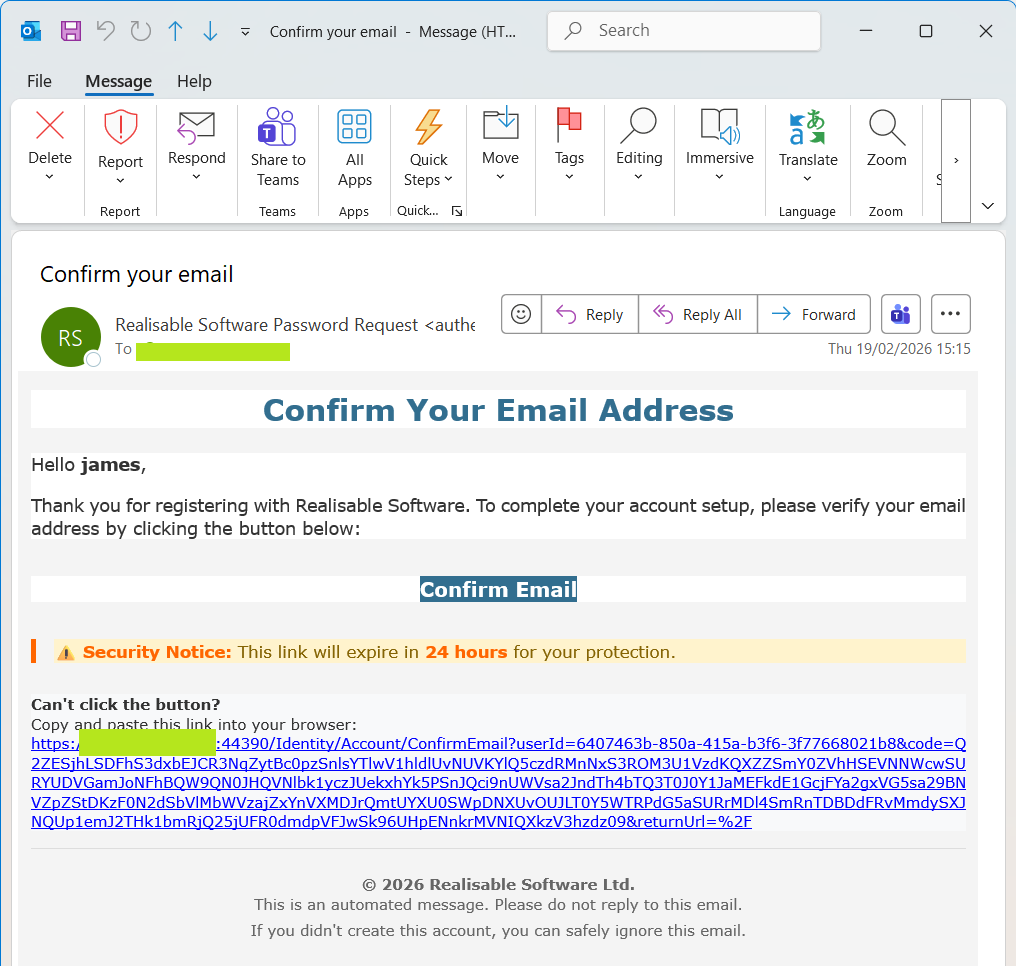
- There is a 'Confirm Email' link and below a text version of the same link.
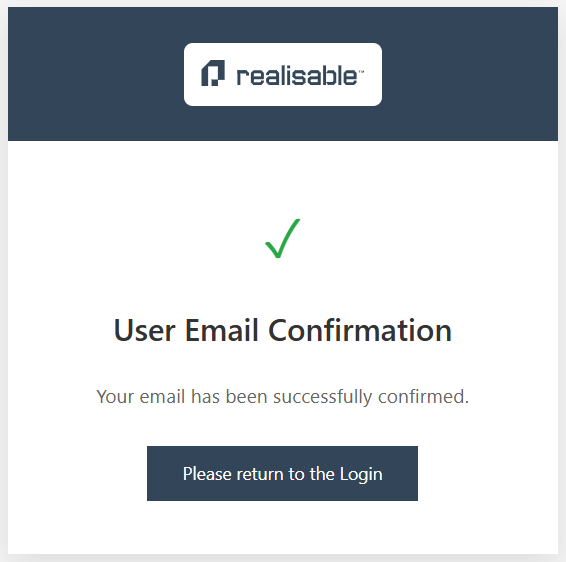
If successful, the following confirmation is shown and then press Return to Login.
- Login using your previously created credentials.
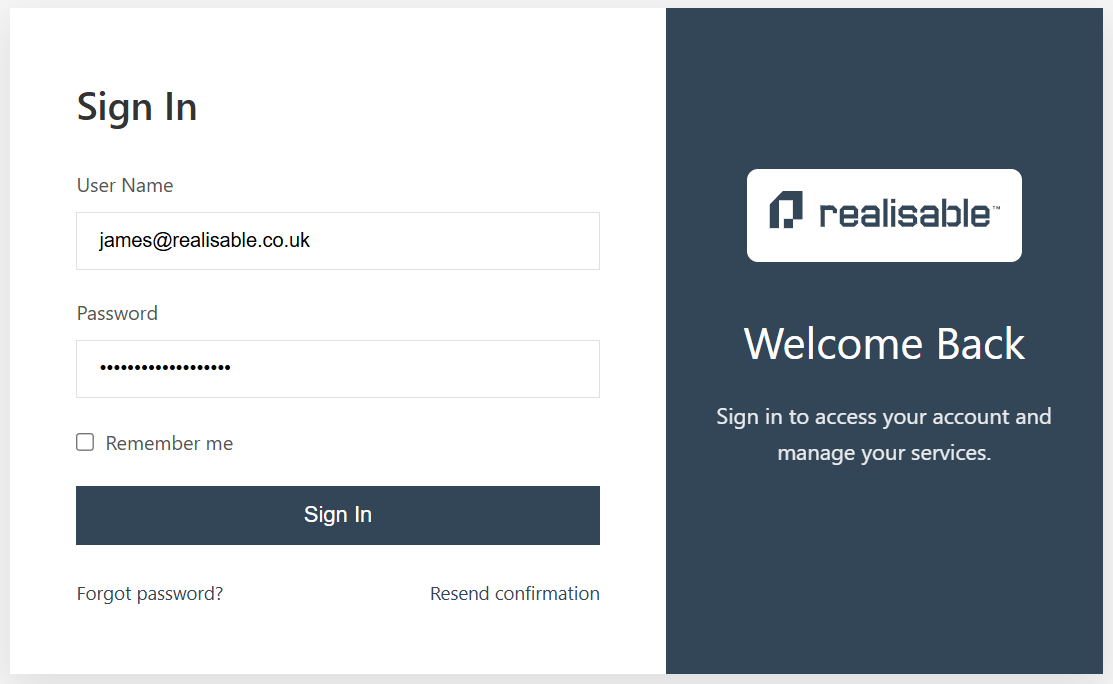 After the initial (Admin level) account is created the Create Account button is removed from the Login screen.
 - Press the Create Account from the Login screen.